How to Setup IPTV on Firestick, Smart TV, Android & iOS
Setup Summary & Key Takeaways
- Under 3-Minute Setup: Simple step-by-step instructions for all modern smart devices.
- Zero Complex Hardware: Runs directly on your existing Smart TV, Firestick, phone, or PC.
- Recommended Apps: TiviMate (Firestick/Android), IBO Player (Samsung/LG), Smarters Pro (iOS).
- 24/7 Live Assistance: Our WhatsApp tech desk is available if you need remote guidance.
Setting up Falcon IPTV takes less than 3 minutes. Because our service utilizes industry-standard Xtream Codes API and M3U playlist protocols, you can connect your subscription to virtually any modern smart display, streaming media player, smartphone, or personal computer without buying specialized equipment.
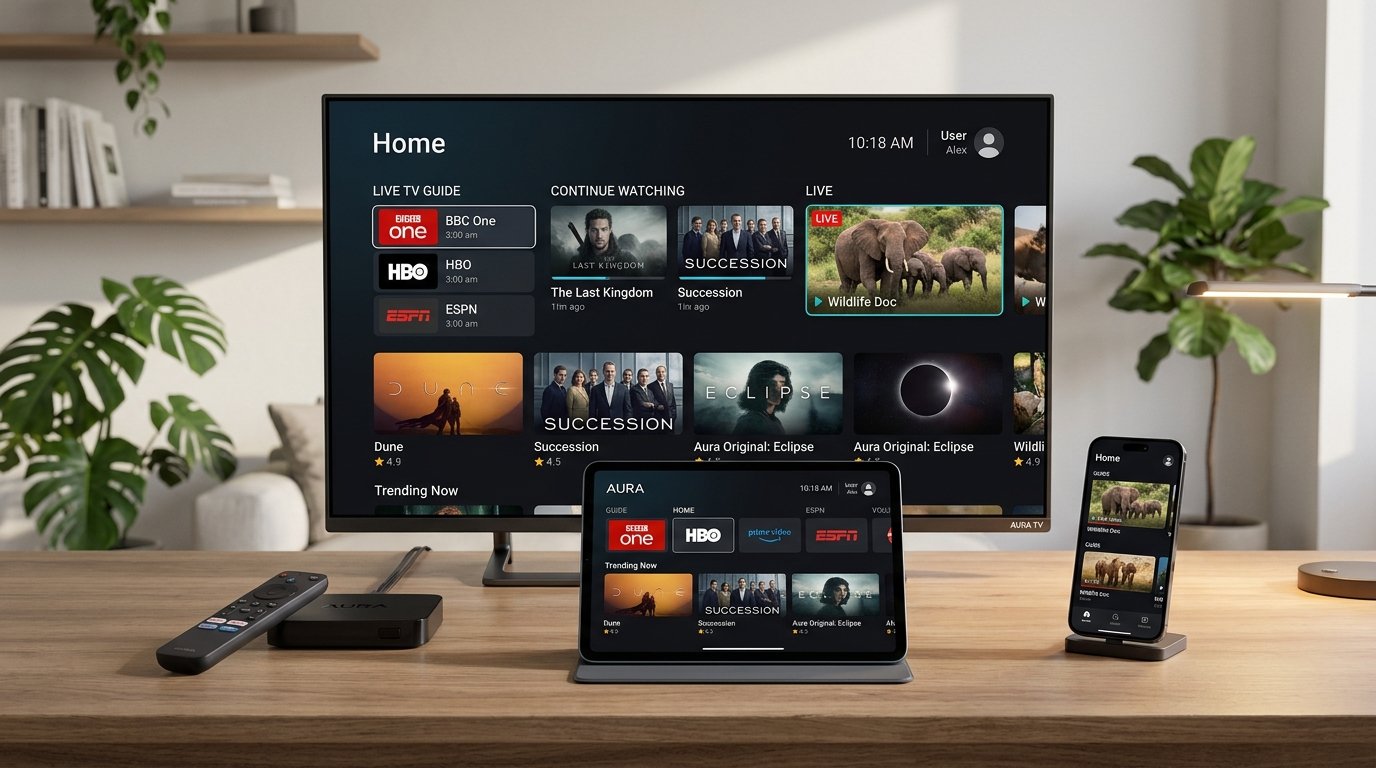
Method 1: Setup on Amazon Fire TV Stick 4K / Cube (Recommended)
The Amazon Firestick is our #1 recommended streaming player due to its hardware acceleration and compatibility with premium IPTV players like TiviMate and IPTV Smarters Pro:
- Turn on your Firestick and open the Find > Search menu from the home screen.
- Type Downloader and install the free Downloader app (orange icon by AFTVnews).
- Go to Firestick Settings > My Fire TV > Developer Options. Turn ON Install Unknown Apps for the Downloader app. (If Developer Options is hidden, click About > Your Fire TV Device rapidly 7 times).
- Open Downloader, enter the quick code for your preferred app (e.g., TiviMate or IPTV Smarters Pro), and click Go.
- Once downloaded, click Install and then open the application.
- Select Add Playlist > Xtream Codes API and enter your Falcon IPTV Server URL, Username, and Password sent to your WhatsApp.
- Click Login. Your channels, TV guide (EPG), and VOD movies will download automatically in seconds!
Method 2: Setup on Samsung & LG Smart TVs (Tizen & webOS)
If you prefer streaming directly through your Smart TV without plugging in a streaming stick:
- Open the Samsung Smart Hub or LG Content Store on your television.
- Search for IBO Player, Smart IPTV, or Nanomid Player and install the app.
- Open the installed app. On screen, you will see your TV’s unique MAC Address and Device Key.
- Send your MAC Address to our WhatsApp support desk, or visit the app’s playlist upload portal to paste your Falcon IPTV M3U Playlist URL.
- Restart the app on your TV. All 25,000+ channels and 60,000+ VOD titles will populate immediately.
Method 3: Setup on Android TV, Google TV & Android Phones
- Open the official Google Play Store on your Android TV, Nvidia Shield, or smartphone.
- Search for IPTV Smarters Pro or TiviMate IPTV Player and click Install.
- Launch the application and select Login with Xtream Codes API.
- Enter any playlist name (e.g.
Falcon IPTV), followed by the Server URL, Username, and Password provided in your WhatsApp activation message. - Click Add User. Enjoy instant 4K buffer-free streaming!
Method 4: Setup on Apple iOS (iPhone, iPad) & Apple TV
- Open the official Apple App Store on your iPhone, iPad, or Apple TV 4K.
- Download Smarters Player Lite or GSE Smart IPTV.
- Open the app, tap Add User / Xtream Codes API.
- Input your login credentials and tap Add Playlist.
Connect with Our 24/7 WhatsApp Technical Desk
Having trouble installing Downloader or activating your MAC address? Message our team for immediate, friendly support.
Message Tech Desk on WhatsApp