How to Fix IPTV Buffering: 7 Proven Tips for Smooth 4K Streaming (2026)
Buffering Fix Summary & Key Rules
- Ethernet vs Wi-Fi: Wired connections or 5GHz Wi-Fi eliminate 85% of packet drops.
- Custom DNS: Switching to Cloudflare (1.1.1.1) stops ISP domain throttling.
- Anti-Freeze Protocol: Multi-cloud routing bypasses congested ISP peering transit nodes.
- Buffer Adjustment: Increasing player buffer to 3-5 seconds creates a smooth video cushion.
Table of Contents
- 1. What Really Causes IPTV Buffering & Freezing?
- 2. Tip #1: Switch to 5GHz Wi-Fi or Wired Ethernet
- 3. Tip #2: Clear Player Cache & App Data
- 4. Tip #3: Change Custom DNS to Cloudflare or Google
- 5. Tip #4: Bypass ISP Speed Throttling with Anti-Freeze v9.4
- 6. Tip #5: Adjust Hardware Acceleration & Buffer Size
- 7. Tip #6: Close Background Apps on Firestick & Android
- 8. Tip #7: Restart Router & Modem for Fresh NAT Tables
- 9. Troubleshooting Matrix: Symptom vs Solution
Nothing ruins matchday excitement faster than a spinning loading circle during a penalty shootout or championship fight. Learning How to Fix IPTV Buffering is essential for anyone streaming live sports and cinema in 4K resolution. Contrary to popular belief, buffering is rarely caused by your raw download speed; it is almost always the result of local Wi-Fi interference, ISP transit throttling, or DNS lookup latency.

1. What Really Causes IPTV Buffering & Freezing?
When you watch video on demand on YouTube or Netflix, the player downloads minutes of video ahead into your device’s memory. Live IPTV is fundamentally different: packets are encoded, transcoded, and broadcast in real time with milliseconds of latency. A momentary packet drop of just 0.5% can cause your player to freeze. The most common bottlenecks are:
- 2.4GHz Wi-Fi Congestion: Microwave ovens, neighboring networks, and household walls cause micro-disconnections.
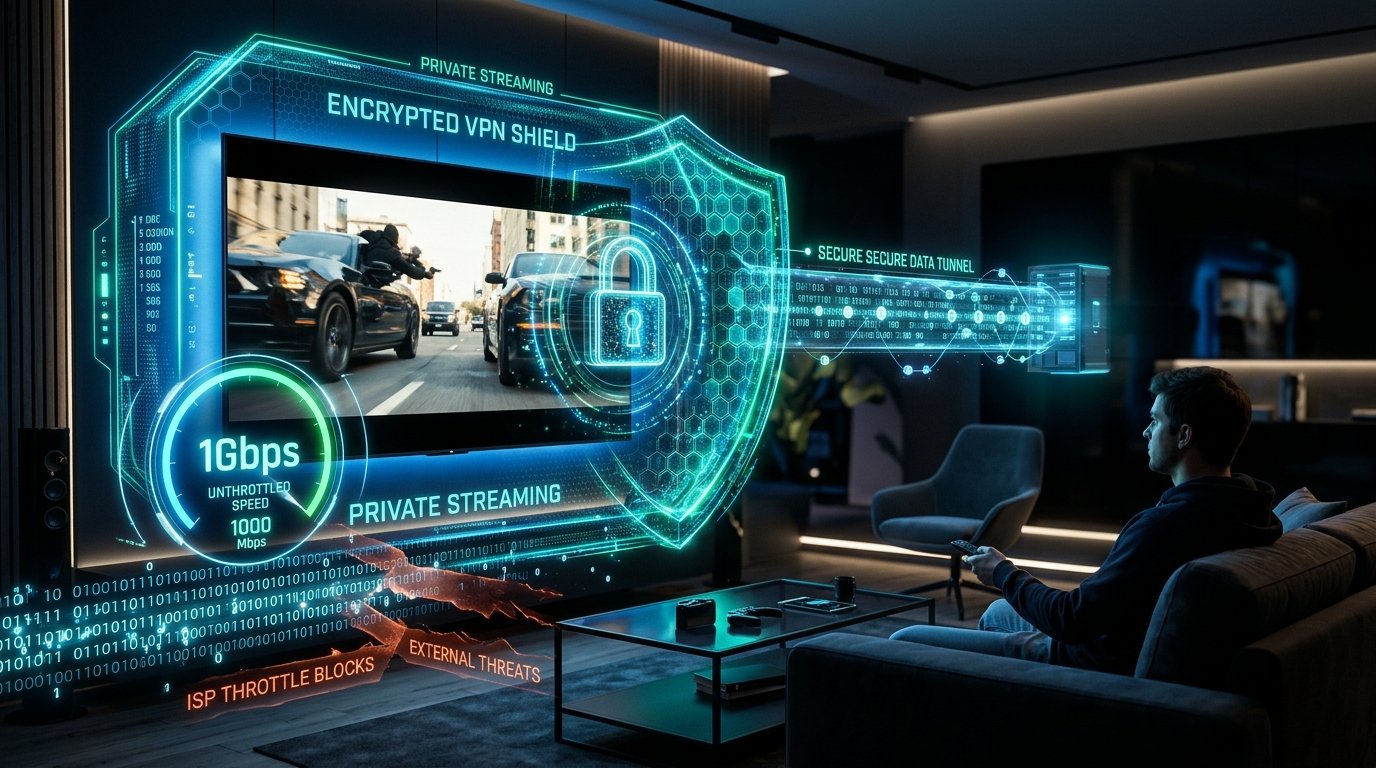
- ISP Traffic Shaping: Internet service providers detect continuous UDP/HLS video streams and throttle bandwidth during peak evening hours.
- Player Memory Exhaustion: Streaming devices running low on RAM begin dropping video frames.
2. Tip #1: Switch to 5GHz Wi-Fi or Wired Ethernet
The 2.4GHz Wi-Fi band has greater physical range but suffers from massive channel congestion and lower bandwidth throughput. If your TV or streaming stick is connected to 2.4GHz, split your router’s SSIDs and force your device to connect to the 5GHz band. For the ultimate zero-jitter connection, invest in an inexpensive USB-to-Ethernet adapter for your Firestick or plug an Ethernet cable directly into your Smart TV. Test your connection at Speedtest.net to ensure jitter is under 15ms.
3. Tip #2: Clear Player Cache & App Data
IPTV players download thousands of channel logos and XMLTV EPG data entries. Over weeks of viewing, this data cache balloons and chokes your streaming device’s RAM. In Amazon Firestick settings:
- Navigate to Settings > Applications > Manage Installed Applications.
- Select your IPTV app (e.g. TiviMate or IPTV Smarters Pro).
- Click Clear Cache (do not click Clear Data unless you want to re-enter your login details).
3. Tip #3: Change Custom DNS to Cloudflare or Google
Your default ISP DNS server can be slow to resolve dynamic stream CDN subdomains. Switching your router or Firestick DNS to Cloudflare DNS (1.1.1.1 and 1.0.0.1) or Google DNS (8.8.8.8 and 8.8.4.4) drastically speeds up channel switching time and bypasses regional ISP domain blocks.
4. Tip #4: Bypass ISP Speed Throttling with Anti-Freeze v9.4
At Falcon IPTV, our proprietary Anti-Freeze v9.4 infrastructure routes stream packets dynamically across 12 worldwide high-bandwidth cluster nodes. If an ISP in the UK or USA attempts to throttle traffic from a specific IP range during a Premier League match, our multi-cloud load balancer instantly migrates your stream connection to an alternate edge server without interrupting your video playback.
5. Tip #5: Adjust Hardware Acceleration & Buffer Size
Inside your IPTV player settings (TiviMate, XCIPTV, or Smarters), look for Stream Buffer Size. Changing this setting from “None” to “Medium” (3 to 5 seconds) gives your player a comfortable cushion to absorb packet fluctuations. Additionally, ensure Video Decoder is set to Hardware (MediaCodec) rather than Software decoding.
6. Tip #6: Close Background Apps on Firestick & Android
Background applications (Netflix, Prime Video, YouTube) remain active in Firestick RAM. Install a free utility like Background Apps & Process List from the Amazon Appstore to force-close unused background tasks before starting your stream.
7. Tip #7: Restart Router & Modem for Fresh NAT Tables
Home routers accumulate thousands of expired Network Address Translation (NAT) table entries and memory leaks. Power cycling your router once every two weeks clears stale connection sessions and resets your ISP IP lease.
8. Troubleshooting Matrix: Symptom vs Solution
| Buffering Symptom | Probable Root Cause | Immediate Fix |
|---|---|---|
| Freezes every 10–15 seconds on all channels | Local Wi-Fi packet loss or low bandwidth | Switch to 5GHz Wi-Fi; restart home router. |
| Only freezes during big live sporting events | ISP traffic throttling or server overload | Use Falcon IPTV Anti-Freeze v9.4 or WireGuard VPN. |
| Audio continues playing but video freezes | Device GPU hardware decoding overload | Switch decoder from Software to Hardware (MediaCodec). |
| App crashes back to Firestick home screen | Device flash storage / RAM full | Clear app cache and uninstall unused apps. |
Upgrade to Falcon IPTV’s Anti-Freeze 4K Network
Backed by our 99.98% server uptime SLA and 7-day money-back guarantee. Instant WhatsApp setup in under 3 minutes.
Order on WhatsApp Now